How to Install and Set Up Mailcow on Ubuntu: A Production Guide
Install Mailcow on Ubuntu with Docker and end up with mail that reaches the inbox. This guide covers DNS, port 25, reverse DNS, SPF, DKIM, DMARC, TLS, backups, and the mistakes that quietly break delivery.
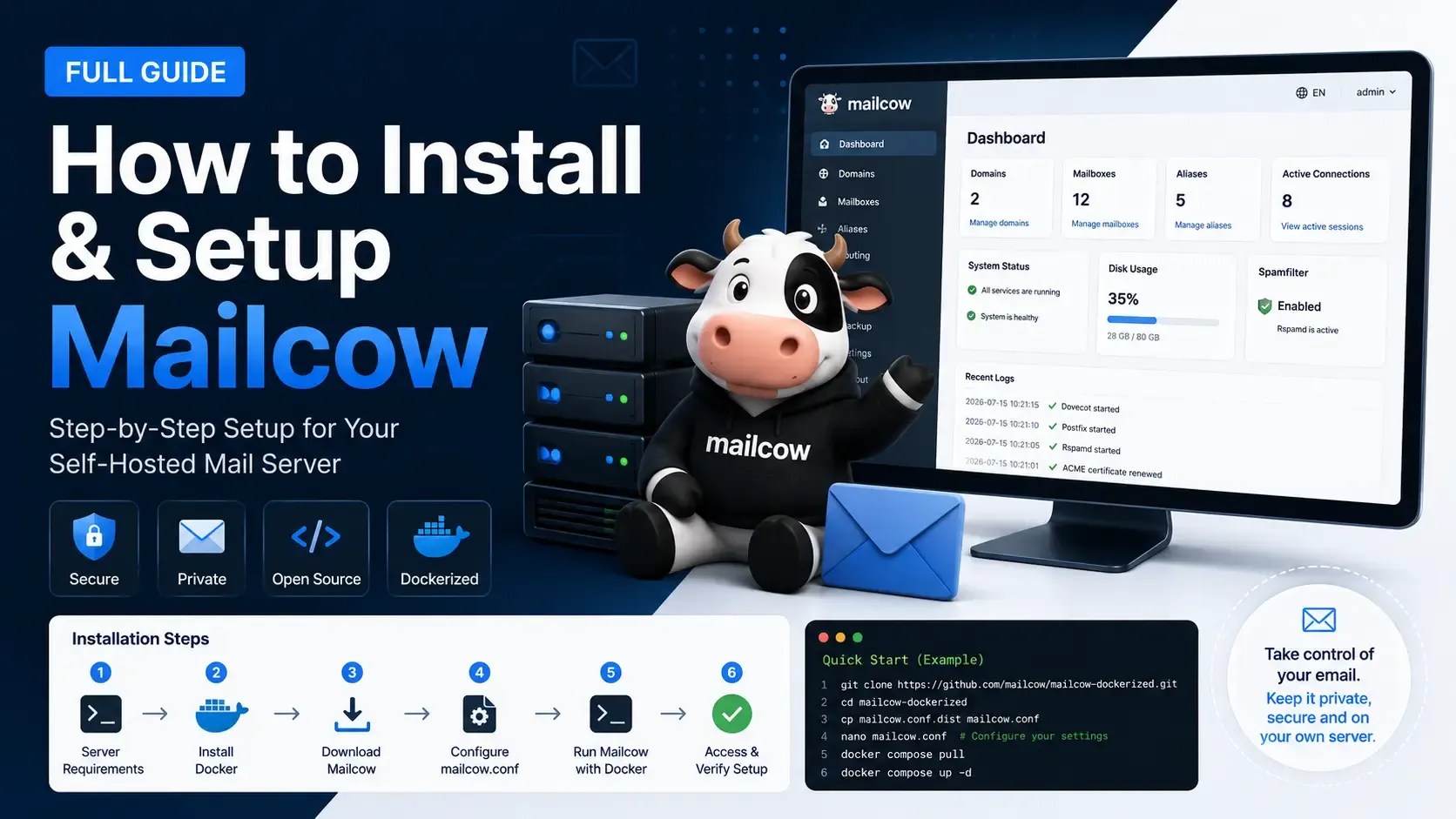
Most Mailcow installs do not fail at Docker. They fail two days later, when a message you sent to Gmail sits in spam, or never leaves the server at all. The containers were fine. The name of the server, the IP address, or one DNS record was not.
This is a practical guide to installing Mailcow on Ubuntu so the result is a mail server you can actually use: webmail, phone and laptop access, spam filtering, a real certificate, and mail that has a fair chance of landing in the inbox. The commands below follow Mailcow's own install steps. The notes around them are the parts people usually skip, and then spend a weekend repairing.
The examples use example.com, the hostname mail.example.com, and the address 203.0.113.10. Swap in your domain, your hostname, and your server IP. Do not leave the examples in place.
What you are installing
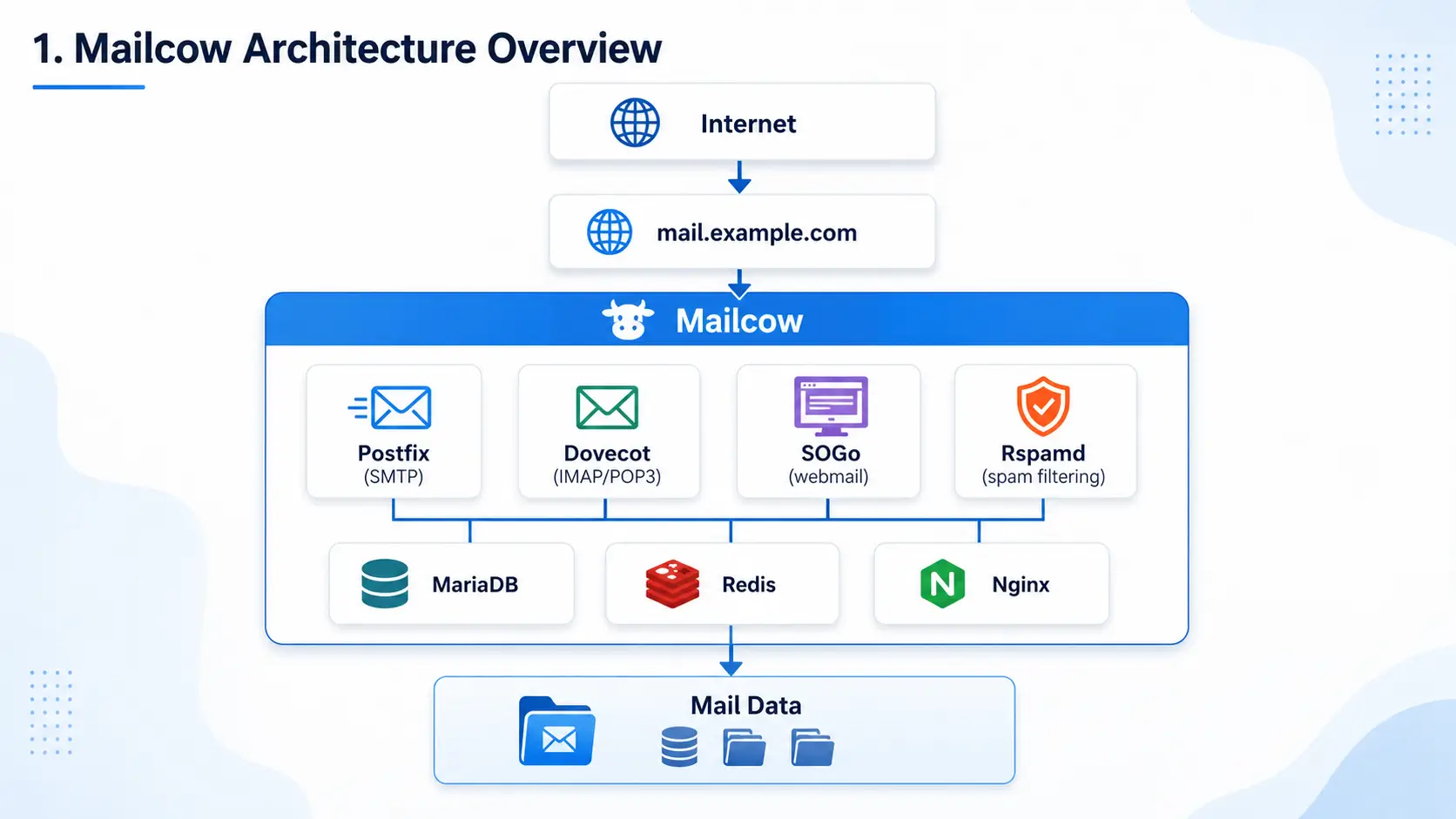
Mailcow is a complete mail system packed into Docker. You are not installing one program. You are installing the pieces that normally take a week to wire together by hand: Postfix to send and receive, Dovecot to store mailboxes, SOGo for webmail and calendars, Rspamd for spam, ClamAV for malware scanning, plus Nginx, MariaDB, and a panel where you add domains and users.
That is why it wants more memory than a tiny send-only relay. It is a groupware box. For a private server or a small team it is a fair trade, because you get one place to manage mail instead of five half-configured packages.
It wants a real virtual machine. KVM, VMware, and Hyper-V are fine. OpenVZ, LXC, and a NAS are not. Mailcow says so directly, and the people who ignore it meet strange network bugs that look like mail problems.
Buy the server for mail, not for a website
A website can limp along on shared hosting. Mail cannot. Other servers decide whether to trust you based on the IP you send from, and on whether that IP has a proper name.
Before you pay for a VPS, ask the provider two questions in writing:
- Will this server have a static public IPv4 that stays mine?
- Is outbound TCP port 25 open, or can you open it for a mail server?
Port 25 is how servers talk to each other. Plenty of cloud plans block it. If it stays blocked, Mailcow can still receive mail, and it can still show you a pretty admin panel, but it cannot deliver mail to the rest of the internet. That is the most expensive surprise in this whole job.
You also need permission to set reverse DNS, sometimes called a PTR record. It is set in the provider's panel, not at your domain registrar. It should say:
203.0.113.10 → mail.example.comAnd the forward record should agree:
mail.example.com → 203.0.113.10If those two do not match, a lot of inboxes will treat you as a stranger. Check the IP on a blocklist lookup before you move real mail onto it. A clean install on a dirty address still lands in spam. A new IP sometimes inherits the previous customer's reputation, and no amount of Docker will wash that off.
How much machine you actually need
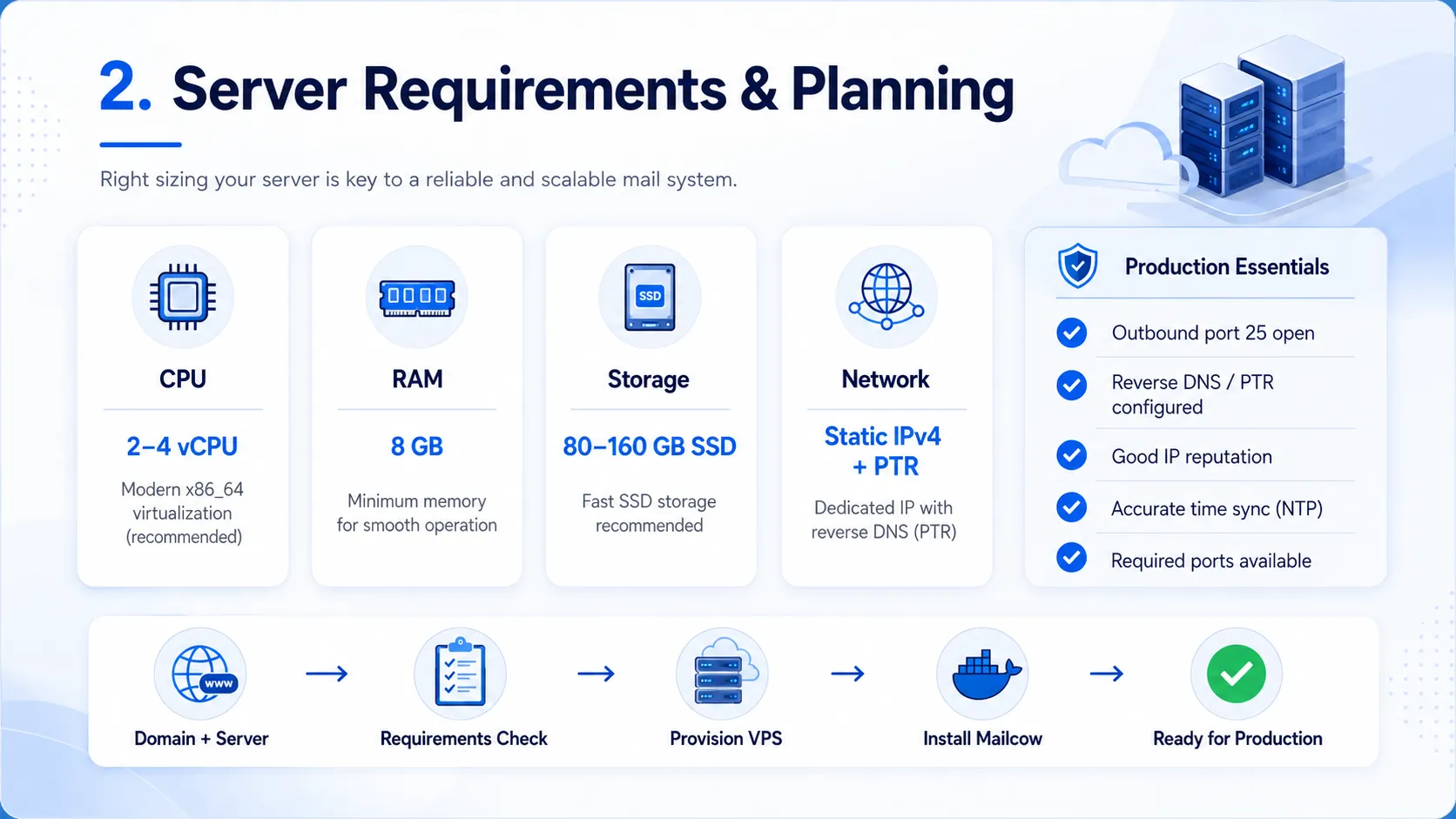
Mailcow's current minimum is modest on paper and less modest in practice:
- CPU: 1 GHz at the bare minimum. Give it 2 to 4 vCPU for a small production box.
- Memory: 6 GiB plus 1 GiB of swap. 8 GiB is the comfortable size for about five to ten people. A busy office with phones syncing mail should plan for 16 GiB.
- Disk: 20 GiB before any mail is stored. An 80 to 160 GiB SSD is a saner start once attachments show up.
- System: Ubuntu 22.04 or newer. This guide uses Ubuntu 24.04 LTS. x86_64 and ARM64 both work.
ClamAV is hungry. On a very small box, Mailcow's setup script will offer to turn it off. That is a reasonable choice for a personal server. It is a poor choice if you are holding other people's mail and want malware scanning.
Keep this server for mail. A WordPress site, a game panel, and Mailcow on one machine compete for ports 80 and 443, and they compete for your attention the night something breaks.
Set DNS before you install anything
Give the server its own name. mail.example.com is the hostname. example.com is the domain people send mail to. They are not the same thing, and Mailcow will warn you if you try to use a name with no subdomain.
That hostname is the name you will use everywhere: the admin panel, the certificate, the SMTP banner, IMAP, and the place your MX record points.
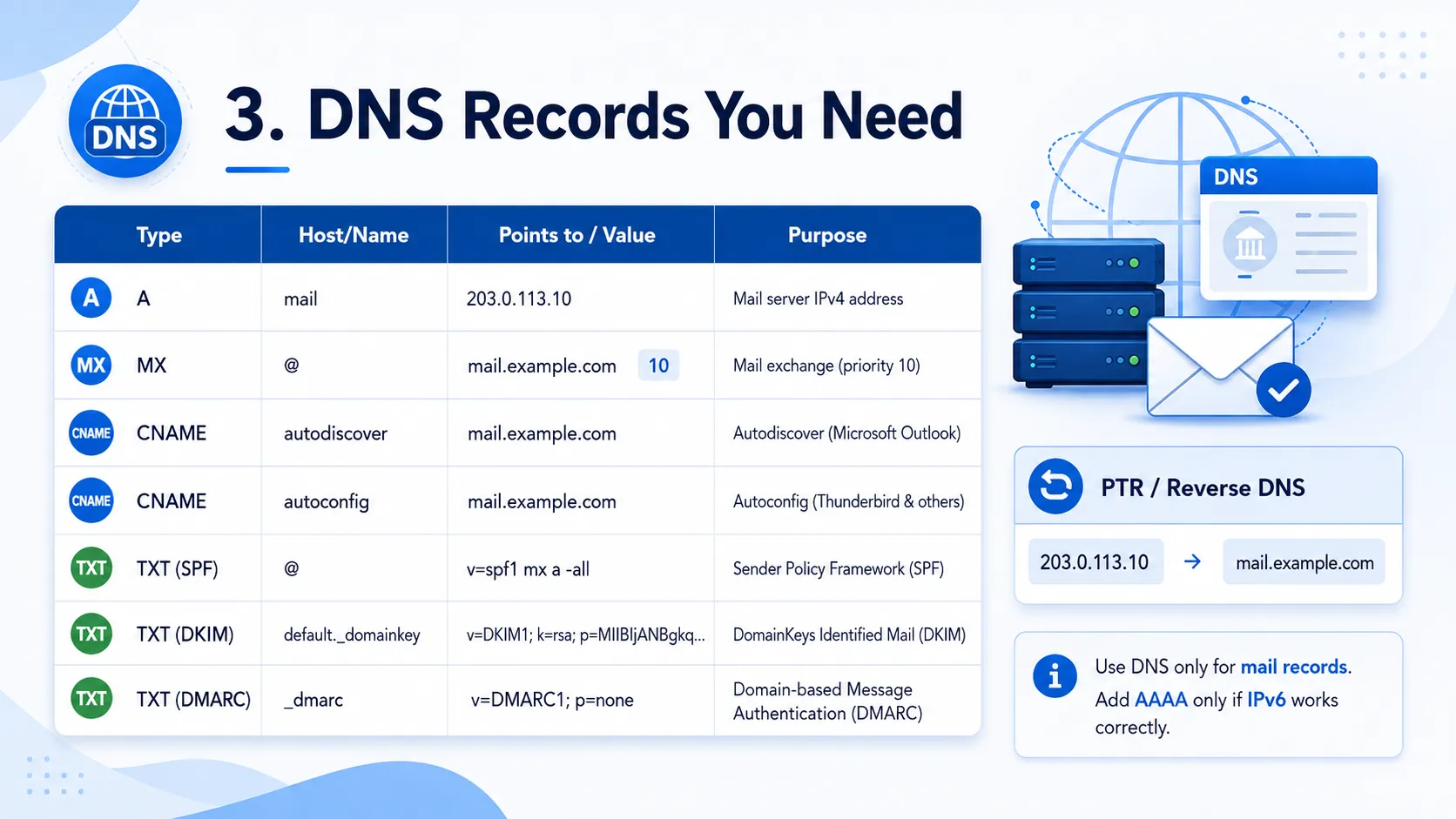
Create these records first. Mailcow's minimal set looks like this:
mail            A        203.0.113.10
@               MX  10   mail.example.com
autodiscover    CNAME    mail.example.com
autoconfig      CNAME    mail.example.com
The A record is only required on the domain that hosts the Mailcow panel. Extra domains you add later need an MX record pointing at mail.example.com. They do not each need their own A record named mail.
An MX record points at a hostname, never at a raw IP address.
If you use Cloudflare, those mail records must be DNS only (the grey cloud). The orange proxy is for websites. It does not carry SMTP on port 25, and it will send people to Cloudflare instead of your server.
Skip IPv6 unless it really works. An AAAA record is a promise that mail.example.com answers on that IPv6 address, that port 25 works there, and that the IPv6 address has its own PTR pointing back at the same hostname. A half-working AAAA record causes the kind of failure that happens for some recipients and not others, which is miserable to debug. No working IPv6 is better than a decorative one.
Prepare Ubuntu
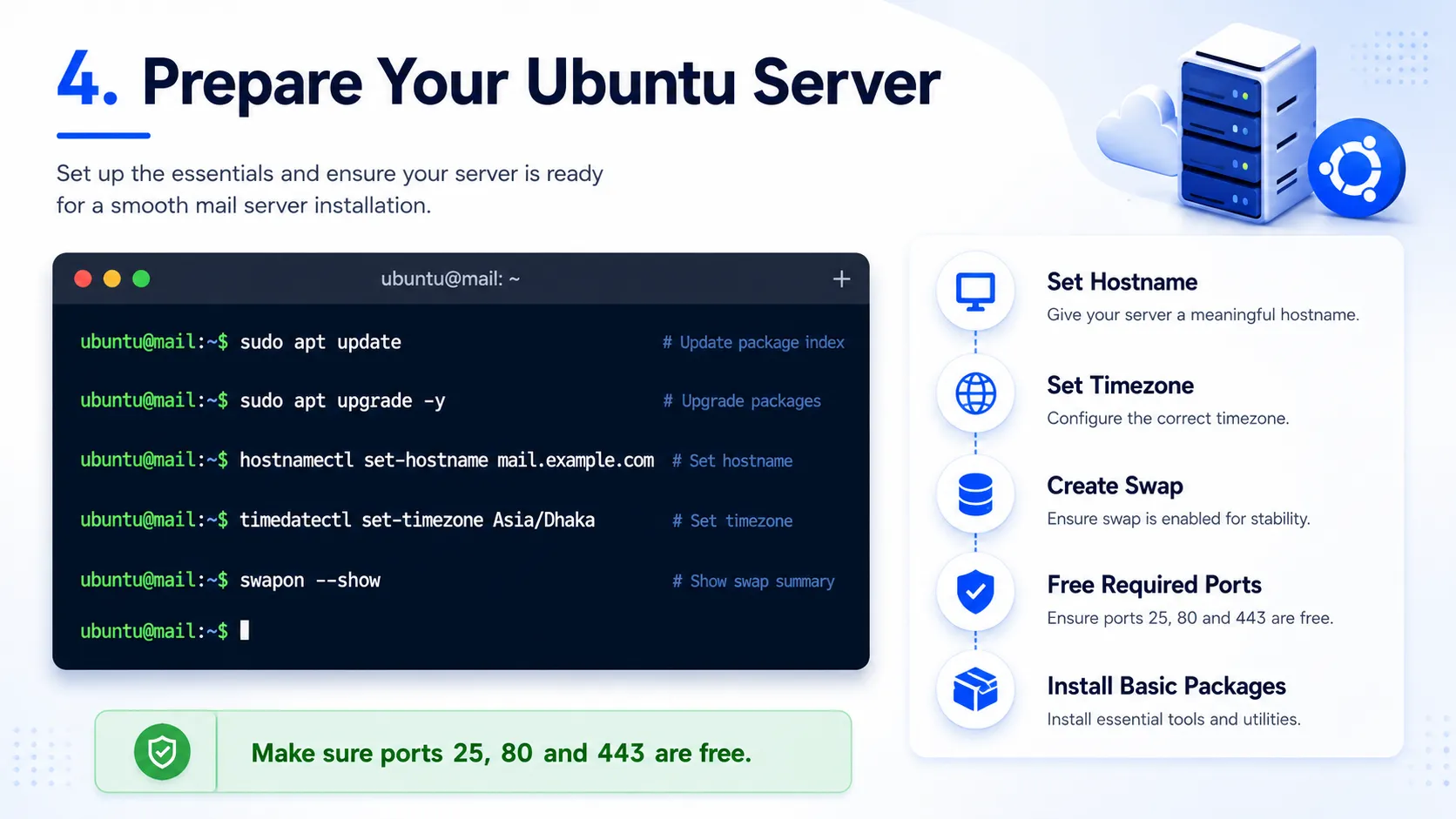
Log in with an SSH key if you can. A mail server that still accepts a root password from the whole internet is a bad place to store anyone's inbox.
ssh [email protected]
hostnamectl set-hostname mail.example.com
hostname -f
You want to see mail.example.com. Then check /etc/hosts so the name resolves locally without pretending to be the public DNS:
127.0.0.1 localhost
127.0.1.1 mail.example.com mail
Set the clock. Certificates, log timestamps, and two-factor codes all depend on it. Mailcow calls this out because a wrong clock breaks TOTP login and makes every later error harder to read.
timedatectl set-timezone Asia/Dhaka
timedatectl
Use your own timezone. Then update the system, and reboot if the kernel changed:
apt update
apt upgrade -y
reboot
If swapon --show is empty, add a 2 GB swap file. Swap is not a substitute for the 6 GiB of RAM, but it keeps a short memory spike from killing a container.
fallocate -l 2G /swapfile
chmod 600 /swapfile
mkswap /swapfile
swapon /swapfile
printf '%s\n' '/swapfile none swap sw 0 0' >> /etc/fstab
Free the ports Mailcow needs
Mailcow listens on the normal mail ports, plus the web ports it uses for the panel and for Let's Encrypt:
- 25 so other servers can deliver mail to you
- 465 and 587 so your users can send
- 143 and 993 for IMAP
- 110 and 995 for POP3, if you still have a client that wants it
- 4190 for sieve filters
- 80 and 443 for the panel, webmail, and certificates
See if something is already sitting on them:
ss -tlpn | grep -E -w '25|80|110|143|443|465|587|993|995|4190'Apache, Nginx, Postfix, Exim, or an old Dovecot install are the usual occupants. Stop the one you do not need:
systemctl disable --now postfixUse the service name you actually found. "Address already in use" during startup means this check was skipped.
Be careful with the firewall. Docker publishes ports in a way that ignores a lot of simple UFW rules. Use the provider's firewall as the front door, open only the ports above, and restrict SSH to addresses you trust. Do not paste a long firewall script from a forum and close the session. Test from a second terminal first.
Install Docker, then Mailcow
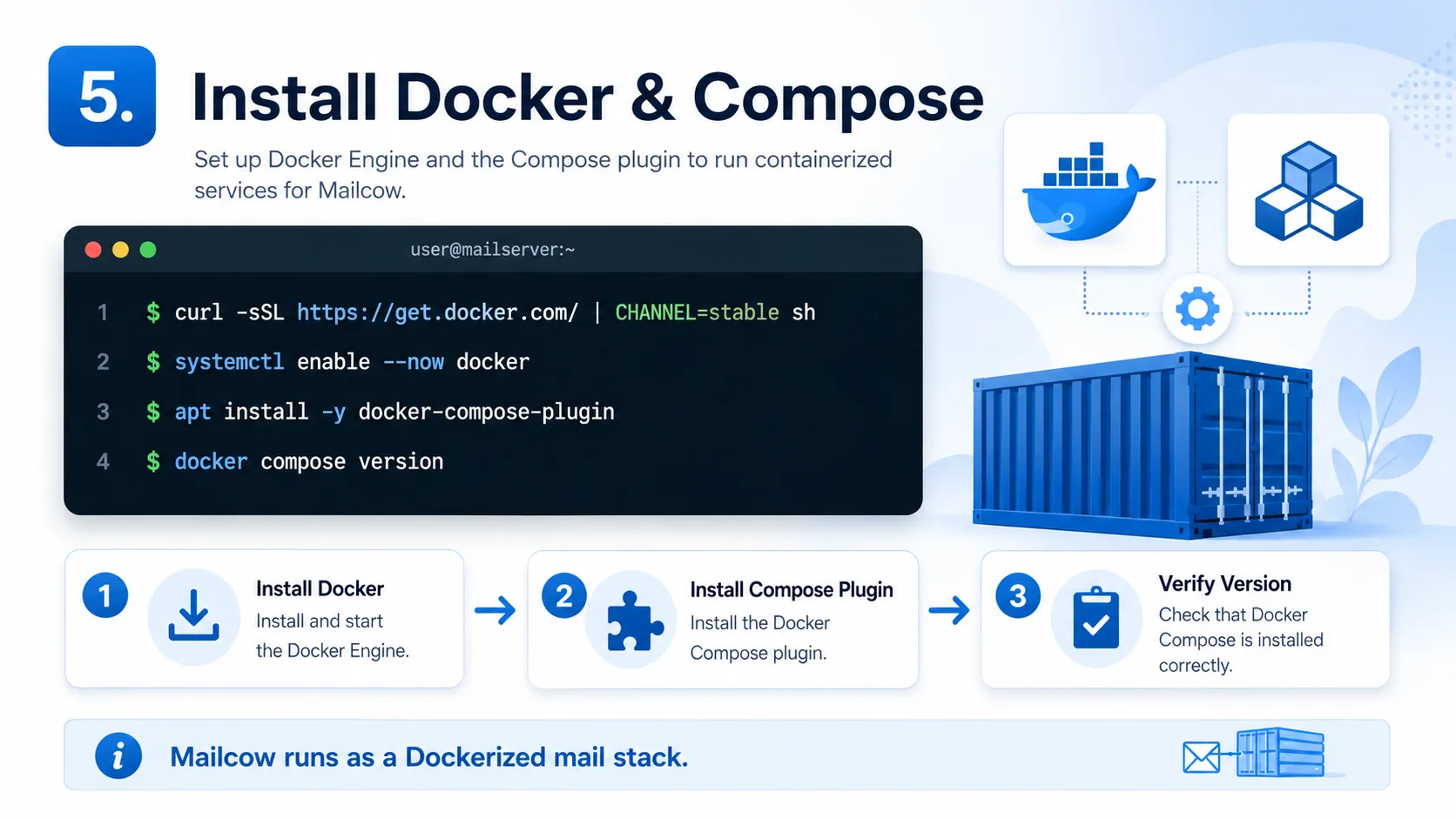
Mailcow wants Docker 24 or newer and Compose 2 or newer, not the old Docker package some Ubuntu mirrors still ship. These are the packages and the install method from the current documentation:
apt update
apt install -y git openssl curl gawk coreutils grep jq
curl -sSL https://get.docker.com/ | CHANNEL=stable sh
systemctl enable --now docker
apt install -y docker-compose-plugin
docker compose version
The command is docker compose, with a space. The older docker-compose with a hyphen is a different program.
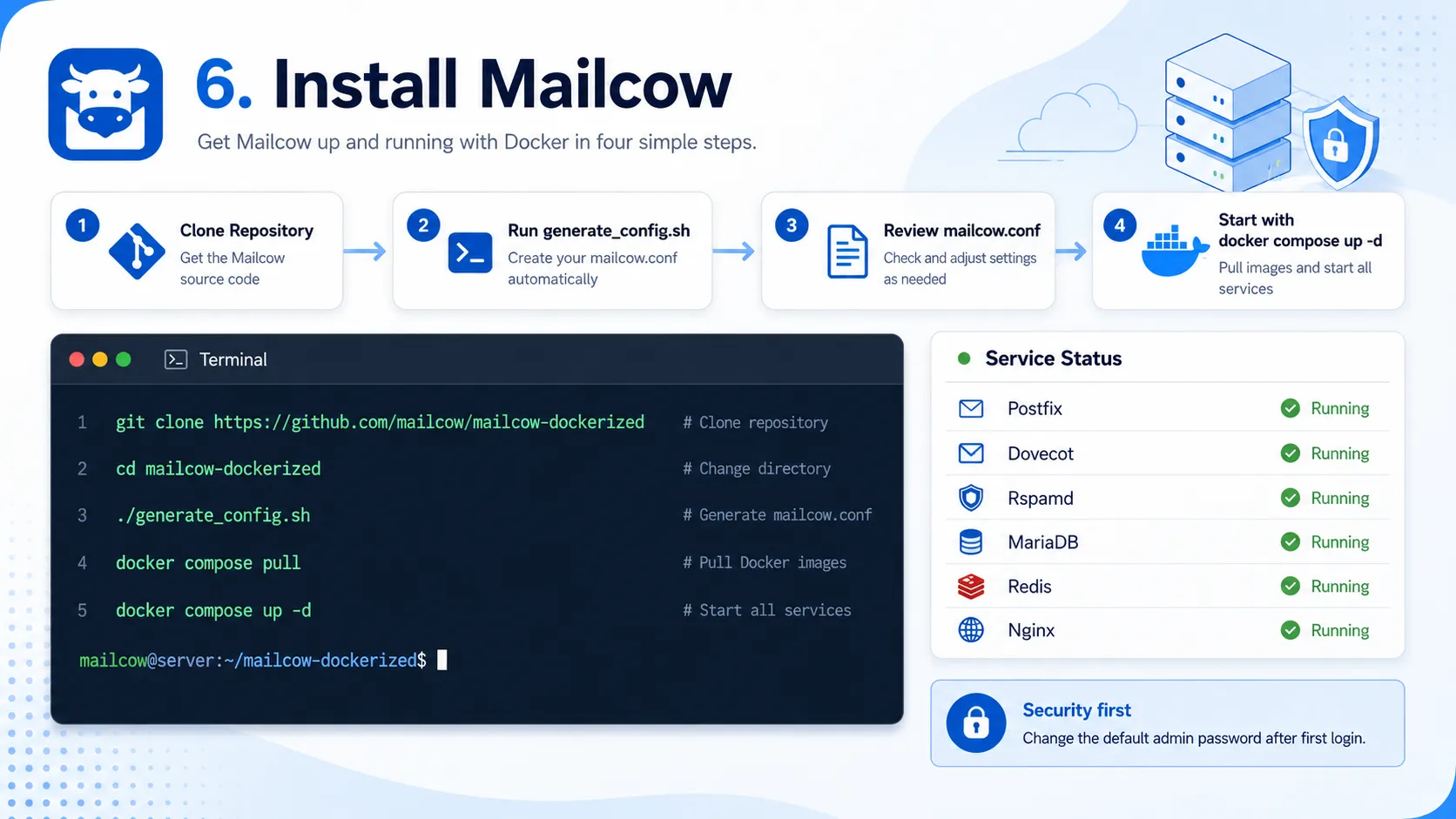
Clone the official repository into /opt and generate the config. umask 0022 keeps the new files from being created with permissions that are too tight for the stack to read.
umask 0022
cd /opt
git clone https://github.com/mailcow/mailcow-dockerized
cd /opt/mailcow-dockerized
./generate_config.sh
When it asks for the hostname, type mail.example.com. When it asks for a timezone, use the same one you set on the server, such as Asia/Dhaka. Open mailcow.conf and confirm those two lines. Leave the generated passwords and the Docker network alone unless you have a specific reason to change them.
docker compose pull
docker compose up -d
docker compose ps
The first pull is large. Give it time. If you want to watch it think:
docker compose logs -fCtrl + C stops the log view. It does not stop Mailcow.
Log in, then throw away the public password
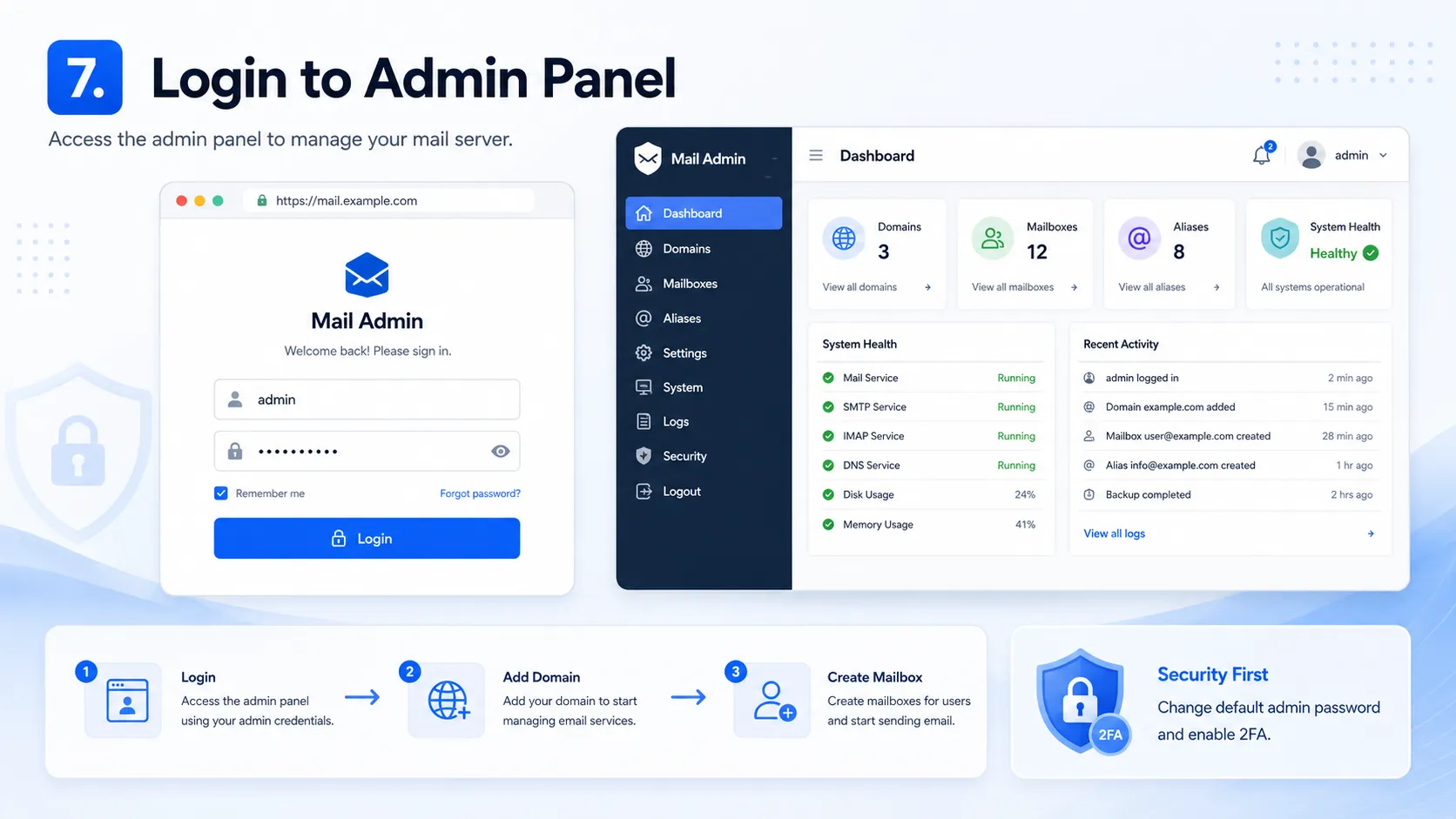
Open https://mail.example.com. The documentation still ships this first login:
Username: admin
Password: moohoo
Everyone who can read the docs knows that password. Change it before you create a mailbox, turn on two-factor authentication, and keep the new password in a password manager. Do not share the main admin account with the person who only needs a mailbox.
If the browser complains about the certificate, wait a few minutes and check whether Let's Encrypt has finished. Port 80 has to reach this server for the default check. A proxied Cloudflare record, a wrong AAAA record, or another web server on port 80 will stop it. The log that tells you which one is:
cd /opt/mailcow-dockerized
docker compose logs --tail=200 -f acme-mailcow
After you fix DNS, docker compose restart acme-mailcow asks it to try again. If you truly cannot open port 80, Mailcow can validate by DNS instead. For one server with port 80 open, the default path is the easy one.
Add the domain, then a person
In the panel, add example.com under the mail domains. Then create a mailbox, for example [email protected], with a long password that is not the admin password.
Webmail is SOGo, on the same hostname. Send yourself a message from another provider before you announce the address to customers. A mailbox that can only email itself is not done.
Teach other servers to trust you
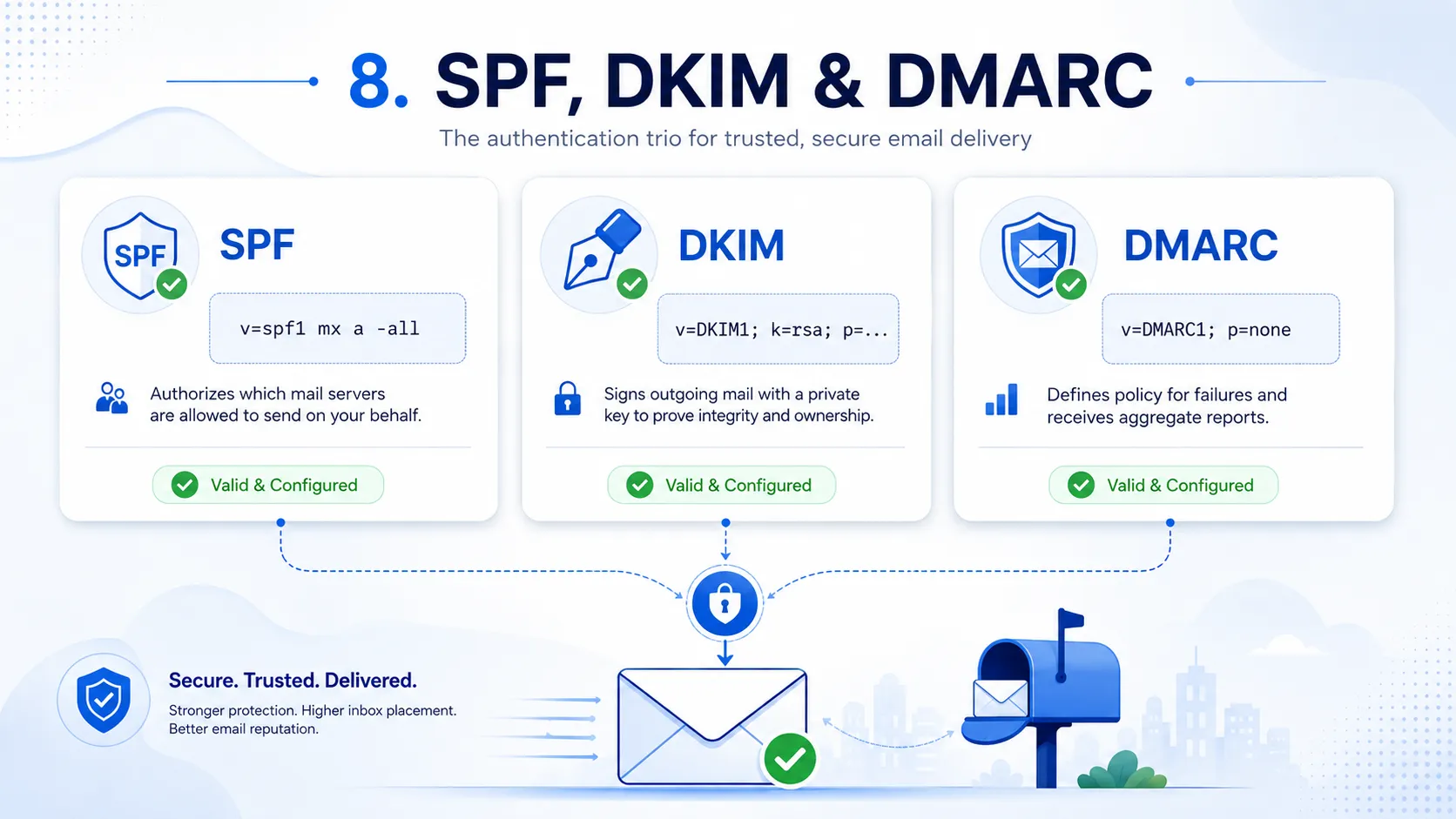
A running SMTP port is not a trusted mail server. Gmail and the rest look for three records.
SPF is the list of servers allowed to send for your domain. One domain gets one SPF record. Two TXT records that both start with v=spf1 do not merge. They break the check.
If Mailcow is the only thing that sends for example.com, Mailcow's example is:
Type: TXT
Name: @
Value: v=spf1 mx a -all
-all means everyone else should be rejected. Use it only when that is true. If a newsletter tool, Google Workspace, or a shop also sends as your domain, add those senders to this same record. While you are still finding them, ~all is the softer ending: fail the check, but do not demand that the world throw the mail away.
DKIM is a signature. Generate the key in the Mailcow admin panel for example.com, then publish the TXT record it shows you. It usually looks like dkim._domainkey, but copy the selector from the screen. Do not retype the long key by hand, do not add spaces, and never publish the private key.
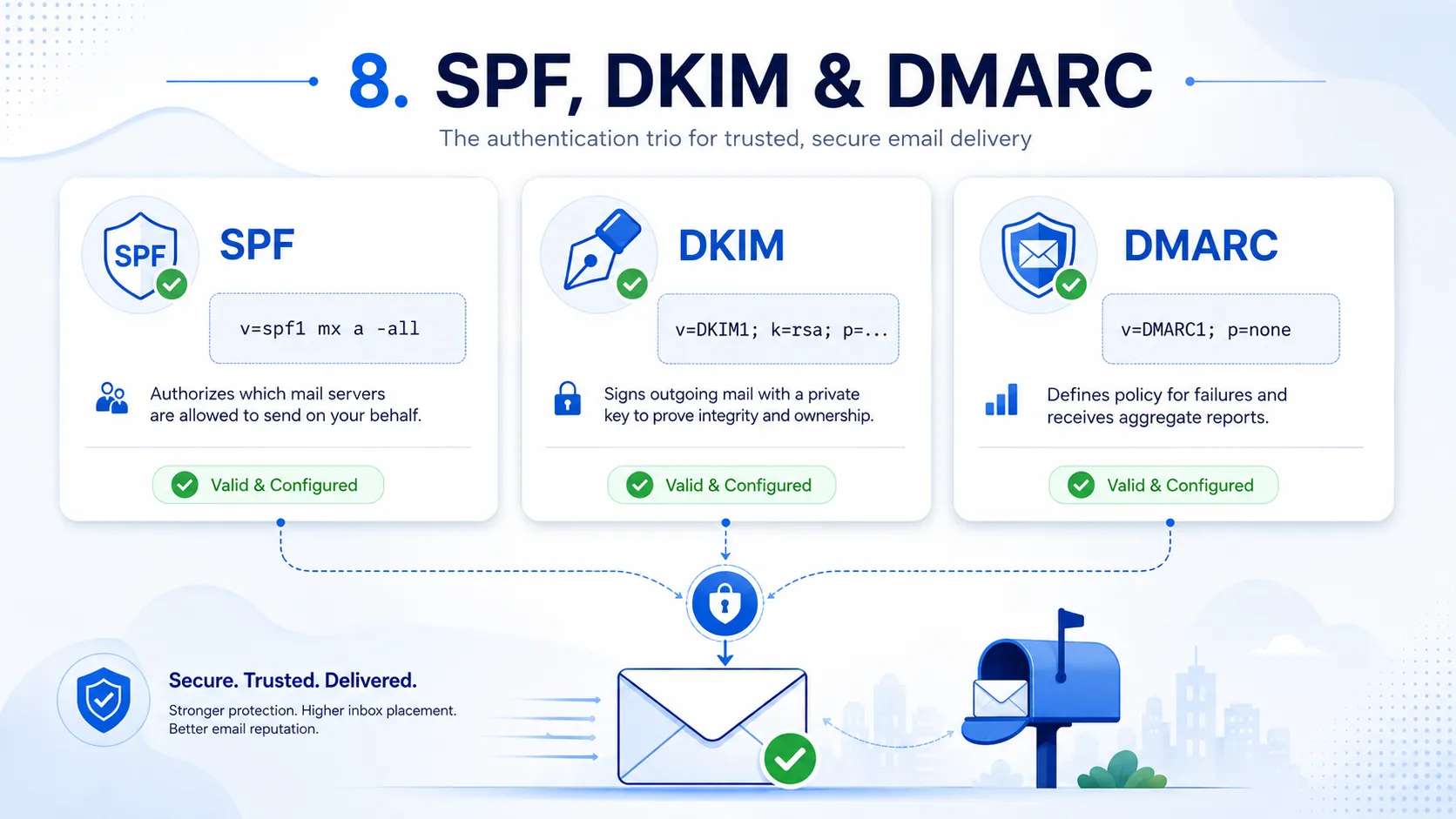
DMARC tells receivers what to do when SPF or DKIM does not line up. Mailcow's docs show a strict reject policy. On a brand-new server I would not start there. Create [email protected] first, then publish a monitoring record:
Type: TXT
Name: _dmarc
Value: v=DMARC1; p=none; rua=mailto:[email protected]
Read the reports. When every real sender passes, move to p=quarantine, and only then to p=reject. Reject on day one will quietly discard mail from a tool you forgot you use.
One extra record is worth doing. Mailcow sends its own watchdog and bounce messages as mail.example.com, and those are not signed the way normal user mail is. Give that hostname an SPF record for the server IP, and a DMARC record of its own, as described in Mailcow's note on watchdog and bounces. Otherwise the alerts you wanted during an outage are the messages most likely to be refused.
What to type into a phone or a laptop
For a default Mailcow install:
Incoming (IMAP)
Server: mail.example.com
Port: 993
Security: SSL/TLS
Username: the full address, [email protected]

Outgoing (SMTP)
Server: mail.example.com
Port: 587
Security: STARTTLS
Username: the same full address
Port 465 with SSL/TLS is the other way to send. The username is the whole email address, not the part before the @. Autodiscover helps some clients, but type the settings by hand once so you know they work without it.
Prove it before you migrate anyone
From the server:
apt install -y dnsutils
dig +short A mail.example.com
dig +short MX example.com
dig +short -x 203.0.113.10
dig +short TXT example.com
dig +short TXT dkim._domainkey.example.com
dig +short TXT _dmarc.example.com
You want the A record on the server IP, the MX on mail.example.com, and the reverse lookup back on that same name. Then send a message to an external account and reply to it. Look at the headers, or use a tester such as mail-tester, and check four words: SPF pass, DKIM pass, DMARC pass, and a reverse DNS name that matches. Send the other way too. A server that only sends, or only receives, is half a server.
You can also send a message to [email protected]. The automatic reply is a plain report of SPF, DKIM, and reverse DNS. It is dull, and it is exactly what you want to read before a customer does.
Back this up, or do not call it production
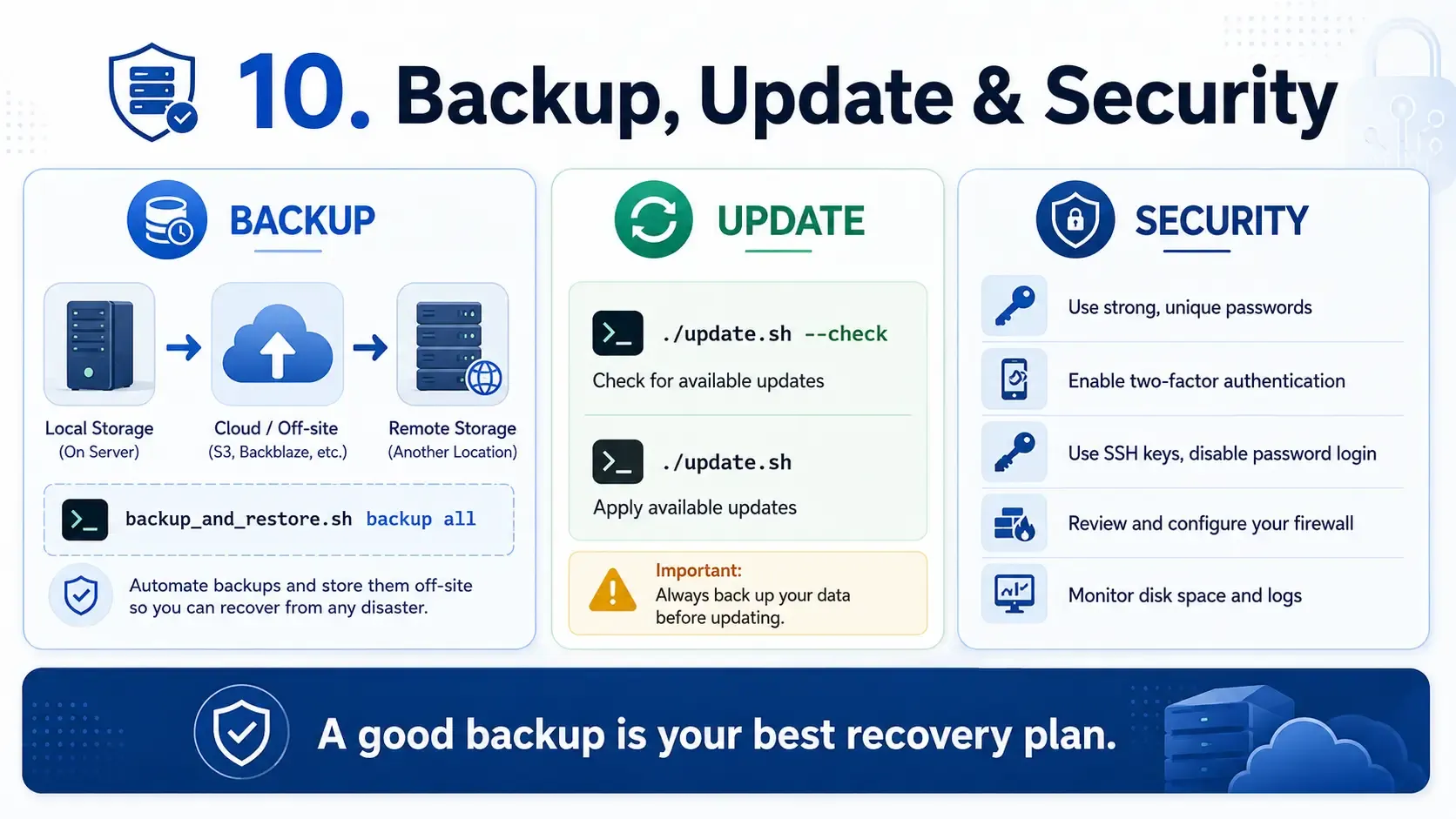
A backup that lives only on the mail server dies with the disk. Put it somewhere else. Mailcow's own script must be run from the install directory. Do not copy it to another folder.
mkdir -p /mnt/mailcow_backups
cd /opt/mailcow-dockerized
MAILCOW_BACKUP_LOCATION=/mnt/mailcow_backups \
  ./helper-scripts/backup_and_restore.sh backup all --delete-days 14
Leave the mailcow_DATE folder names as they are. Restoring on a new machine means installing Mailcow until it is up and empty, then running the same script with restore. Practice that once while the mailbox is still unimportant.
Updates are the same directory, and they come after a backup:
cd /opt/mailcow-dockerized
./update.sh --check
./update.sh
--check shows you what would change. The plain command applies the stable update. Do not run --force because a blog told you it was faster.
When it misbehaves, look here first
- Port 25 is already in use. Another mail program is still installed. Stop it, then start the stack again.
- You can receive, but nothing you send arrives. Outbound port 25 is blocked, or there is no PTR record. Ask the provider. Restarting containers will not open a port they closed.
- Mail arrives in spam. Check the IP on blocklists, then SPF, DKIM, DMARC, and whether the reverse name matches
mail.example.com. New servers also need a little patience. A perfect record on a brand-new IP is not famous yet. - The certificate never appears. Port 80, the A record, a proxied Cloudflare name, or a bad AAAA record. Read
acme-mailcowrather than clicking around. - A container stays unhealthy.
docker compose psand that container's logs. On a small VPS this is often memory, especially ClamAV.
The short list before real mail moves
- The hostname is
mail.example.com, and reverse DNS says the same thing. - Outbound port 25 works, and the IP is not on a blocklist.
- MX, autodiscover, and autoconfig point at that hostname, and Cloudflare is not proxying them.
- The admin password is no longer
moohoo, and two-factor authentication is on. - SPF is a single record, DKIM was copied from the panel, and DMARC is collecting reports.
- You have sent and received mail with a normal email app on port 993 and 587.
- A backup exists on a different disk, and you know the update command.
If the server, the DNS, and the reputation of the IP are right, Mailcow is a calm thing to run. If they are wrong, it is a very polished way to watch mail disappear. Get those three right on an empty mailbox, then move people over.
If you would rather have someone else stand up the VPS, the DNS, and the first backup, that is work I do. The server management service covers this kind of setup, or you can write to me with the domain and the provider you have in mind.